A splash screen is useful for presenting your brand to players and show off any technologies or third parties in your game.

By default the Project Mammut splash screen is the only splash screen that is set up in any projects.
Project Mammut Splash Screen inclusion.
There is no requirements to have the engine splash screen in any games that you make, and you are free to remove it if you wish.
Of course we will always be grateful if you leave it in to help other devs know that you are using our game engine.
Changing the default splash screen
If you do want to use the Project Mammut splash screen but it does not fit the aesthetic of your game. We encourage you to change up the Mammut splash screen to one that fits better.
Think of the Warner Brothers logs in some movies.

Editing Splash Screens
Splash Screens inclusion, order and duration can be adjusted in the Project Settings under the Build tab.
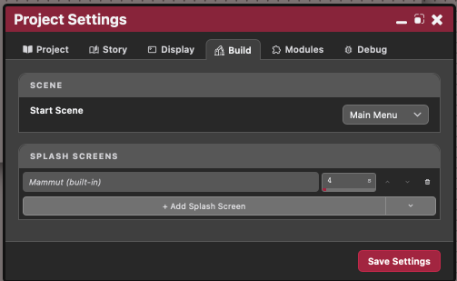
Here you can remove and reorder any splash screens in your project. You can also adjust how long they show for.
Splash screens are just normal game Scenes, you can can easily make your own by just creating a new scene and putting your logo in it with a simple animation.
If you scene duration is a weird length, and you don't want to set a duration for it in the Project Settings you can set it to "0" and then within the code of your scene use the command:
SceneManager.ShowNextStartScene();
This will transition to the next scene in the Start Scene stack.
If any scene is the last scene in the stack, the Start Scene will load (normally your game menu).