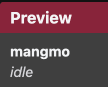
The chapter node preview window is used for previewing the text content of a Chapter and understanding how the narrative flows between nodes.
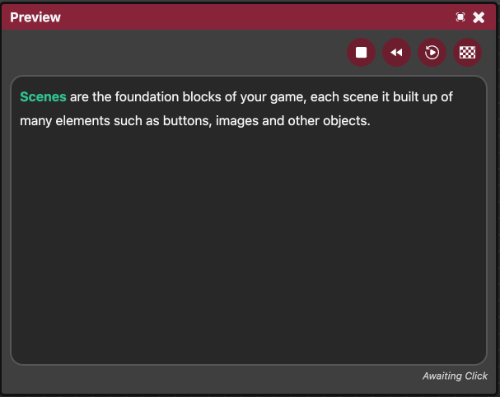
Previewing content
Once you have a node tree set up in the Chapter Editor there are several ways to preview chapter.
- To preview the current open node being edited, click on the small mammut button in the top right hand corner of the Chapter Node Editor window.
To preview the node tree starting from the start node, click on the Large Mammut button it the top left hand corner of the Chapter Editor window.
To preview a specific node in the node tree, right click on the target node and select
Test From Herefrom the context menu.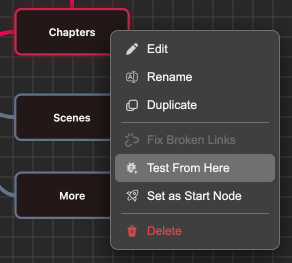
Control Buttons
Stop Button
Click on the Stop button to stop previewing the chapter.

Rewind Button
The Rewind button jumps you back to the previous node that you read, it also reverts an variable changes that happened during the reading of this node.

Replay Button
This button replays the current node from the beginning while reverting all variable changes that were made during the processing of the node.

Jump to End Button
This button stops the text slowly typing out and displays it all at once.

Styles and Links
Any styles created in the Style Manager and used in the Chapter Node Editor will also be shown in the preview output.


Await Click
When previewing a node, the preview window will indicate if the node is awaiting for a mouse click.
Character Details
When a Character is talking, it will be indicated in the top left alongside the character's current variant.